For Tutors
Episode 2: Creating Your First Course
Step-by-step guide to creating and setting up your first course, including type selection, basic info, pricing, and overview video.
## Creating Your First Course### 2.1 Navigating to Course Creation
Steps:
1. From the left sidebar menu, click on Courses.
2. Click the Add Course button (also labeled "Add New Topic" in some versions).
### 2.2 Step 1: Course Type Selection
The first thing you must choose is the Type of content you are creating:
- Course - Standard course with multiple chapters and lessons (most common)
- Quiz - A standalone assessment without course content
Select Course for a full learning experience.
Drip Content Option:
- No: All content is available immediately upon enrollment.
- Yes: Content is released on a schedule (e.g., Module 1 on Day 1, Module 2 on Day 7). This keeps students engaged over time.
### 2.3 Step 2: Basic Course Information
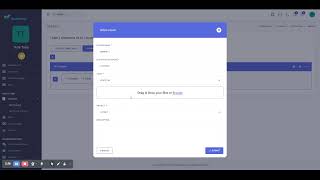
Fill in the following required fields:
- Topic Title - The name of your course. Make it clear and engaging. (Required)
- Category - The subject area (e.g., "Business", "Design", "Technology"). (Required)
- Sub Category - A more specific category, if available. (Optional)
- Level - Difficulty level (e.g., "Beginner", "Intermediate", "Advanced"). (Required)
- Language - The language of instruction. (Required)
- Duration - Estimated time to complete the course (in minutes). (Optional)
Rich Text Fields (Optional but Recommended):
- Course Requirements: What students need before taking this course.
- Course Description: A detailed explanation of what the course covers.
- Course Outcomes: What students will learn or be able to do after completing the course.
### 2.4 Step 3: Pricing Your Course
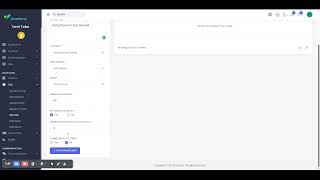
- This course is a free course - Toggle ON to make the course free. Price fields will be hidden.
- Price - Enter the selling price in your currency.
- This course has discounted price - Toggle ON if you want to show a sale price.
- Discount Price - The reduced price students will pay (must be lower than the regular price).
### 2.5 Step 4: Course Overview Video/Image
You can add a preview video or image that appears on your course landing page.
Toggle: "Show Overview Video" to Yes
Host Options:
- Image Preview: Upload a static image instead of a video.
- YouTube: Paste a YouTube video URL.
- Vimeo: Select a video from your Vimeo library or upload directly.
- VdoCipher: Select from VdoCipher (for DRM-protected videos).
- Self: Upload a video file directly to the server.
- Custom URL: Provide a direct URL to a video file.
### 2.6 Saving Your Course
Once all required fields are complete:
1. Review your entries.
2. Click the Save or Submit button at the bottom of the form.
3. Your course is now created and you will be redirected to add content (chapters and lessons).
Next Steps:
After creating your course shell, move on to Episode 3 to learn how to add chapters and lessons!