For Tutors
Episode 4: Creating and Managing Quizzes
Discover how to create standalone quizzes, attach quizzes to course lessons, add different question types, and manage quiz settings.
## Creating and Managing QuizzesQuizzes assess student understanding. They can be standalone or attached to a course lesson.
### 4.1 Creating a Standalone Quiz
Steps:
1. From the sidebar, navigate to Quizzes then Online Quiz.
2. Click Add Quiz (or "Add Online Quiz").
Quiz Setup Fields:
- Quiz Title - Name of the quiz.
- Category - Subject area.
- Instruction - Rules or guidance displayed before the quiz starts.
- Passing Percentage - Minimum score to pass (e.g., 50%).
- Time Limit - Duration in minutes (leave blank for unlimited time).
- Total Questions - Number of questions to pull from the question bank.
- Random Questions - If enabled, questions are pulled randomly from the selected group.
- Question Review - If enabled, students can review their answers after submission.
- Show Result - If enabled, students see their score immediately.
### 4.2 Attaching a Quiz to a Course Lesson
You can add a quiz as a lesson within your course.
Steps:
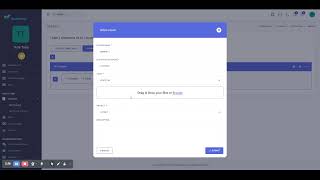
1. Edit your course and go to the Curriculum tab.
2. Click Add Lesson inside the desired chapter.
3. In the lesson type or host dropdown, select Quiz.
4. Choose an existing quiz from the dropdown list, OR click Create New Quiz to make one on the spot.
5. Click Save.
### 4.3 Managing Quiz Questions
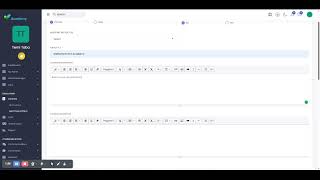
After creating a quiz, you need to add questions.
Steps:
1. Go to Quizzes then Online Quiz.
2. Find your quiz and click the Manage Questions icon (or "Questions" button).
3. You can:
- Add New Questions: Create questions directly.
- Select from Question Bank: Pull questions from your pre-built question bank.
### Question Types Available
- Multiple Choice - One or more correct answers from options
- Short Answer - Student types a brief text response
- Long Answer - Student types a detailed essay-style response
- Sorting - Arrange items in the correct order
- Matching - Match items from two columns
- Cloze (Fill-in-the-Blank) - Complete a sentence with missing words
- Puzzle - Match questions to answers visually
Next Steps:
Episode 5 covers building your Question Bank for reusable quiz content!