For Tutors
Episode 6: Hosting Live Virtual Classes
Learn how to schedule and host live virtual classes using Zoom, Jitsi, Google Meet, BigBlueButton, and other platforms.
## Hosting Live Virtual ClassesEngage with your students in real-time through live classes.
### 6.1 Scheduling a Virtual Class
Steps:
1. From the sidebar, navigate to Virtual Class.
2. Click Add Virtual Class.
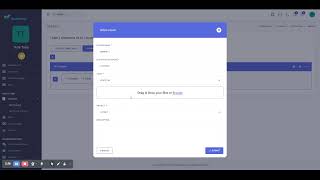
Virtual Class Fields:
- Title - Topic of the live session.
- Category - Subject area.
- Host Platform - The technology to use (see options below).
- Duration - Length of the session in minutes.
- Date - Date of the class.
- Time - Start time.
- Timezone - Your timezone.
- Recurring - Check to repeat the class (daily, weekly, monthly).
- Price - Leave blank or set to 0 for free classes.
Host Platform Options:
- Zoom - Zoom meeting integration (Requires Zoom API credentials)
- BigBlueButton (BBB) - Open-source conferencing (Requires BBB server setup)
- Jitsi - Free open-source video (No setup required)
- Google Meet - Google video platform (Requires Google account)
- In-App Live Class - Built-in live streaming (No external setup)
- Custom - Your own meeting link (Any URL)
### 6.2 Recurring Class Settings
If you toggle Recurring to Yes:
- Interval: Daily, Weekly, or Monthly.
- Days: (For weekly) Select which days (Mon, Tue, Wed, etc.).
- End Date: When the recurrence stops.
### 6.3 Starting a Live Class
Steps:
1. Go to Virtual Class.
2. Find your scheduled class.
3. Click the Start button (appears on the scheduled date/time).
4. The meeting interface will open (Zoom, Jitsi, etc.).
### 6.4 Managing Live Class Recordings
If your platform supports recording, recordings can be accessed from:
- The Virtual Class details page.
- The Resources section (if uploaded manually).
Pro Tips:
- Test your audio and video before the class
- Send reminder notifications to students
- Join a few minutes early to prepare
- Use screen sharing for presentations
Next Steps:
Episode 8 covers managing your profile and settings!